Connect to PostgreSQL in VS Code

To connect to PostgreSQL from Visual Studio Code (VS Code), you can use an extension called “PostgreSQL” which provides a graphical interface to interact with your PostgreSQL database.

Install Link – PostgreSQL extension

Connecting to PostgreSQL from VS Code provides several benefits, including:

    • Connect to PostgreSQL instances
    • Manage connection profiles
    • Connect to a different Postgres instance or database in each tab
    • View object DDL with ‘Go to Definition’ and ‘Peek Definition’
    • Write queries with IntelliSense
    • Run queries and save results as JSON, csv, or Excel

Install VS Code PostgreSQL extension

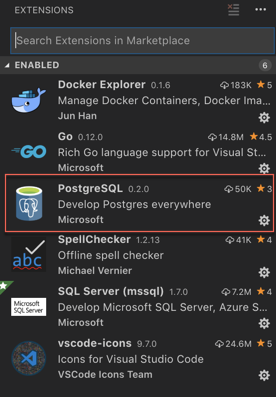
  1. Install the “PostgreSQL” extension in VS Code. You can do this by opening the Extensions view (Ctrl + Shift + X), searching for “PostgreSQL” in the search bar, and clicking on “Install” next to the “PostgreSQL” extension by Microsoft.

  2. Open the “PostgreSQL” extension by clicking on its icon in the Activity Bar (left sidebar).
    a

QuickStart

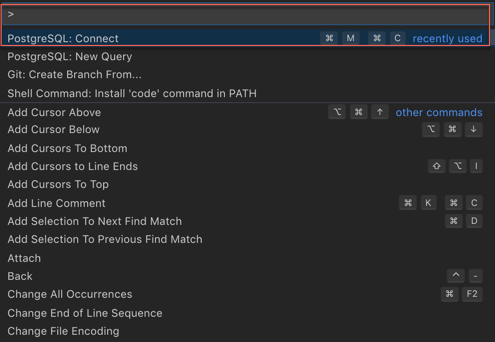
  1. Open the Command Palette Ctrl + Shift + P  (On mac use  ⌘ + Shift + P)
  2. Search and select PostgreSQL: New Query
  3. In the command palette, select Create Connection Profile. Follow the prompts to enter your Postgres instance hostname, database, username, and password.

a

You are now connected to your Postgres database. You can confirm this via the Status Bar (the ribbon at the bottom of the VS Code window). It will show your connected hostname, database, and user.

Query the database

  1. Type a query ex. SELECT * FROM pg_stat_activity;
  2. Right-click, select Execute Query / keyboard shortcut [⌘M ⌘R] and the results will show in a new window.
  3. You can also save the query results as JSONCSV or Excel.

So now, you can seamlessly code for PostgreSQL from Microsoft VS Code without switching screens, leverage powerful intellisense and execute queries.

Enjoy Coding!

IMP NOTE: Result windows from queries won´t show up again after being closed. This is bug with current version and is being worked by dev team. Workaround is either to keep the result window Open Or close / re-open the VS code window.


PostgreSQL Table Partitioning Part II – Declarative Partitioning

Starting Postgres 10.x and onward, it is now possible to create declarative partitions.

In my previous post ‘postgresql-table-partitioning-part-i-implementation-using-inheritance‘, I discussed about implementing Partitioning in PostgreSQL using ‘Inheritance’. Up until PostgreSQL 9, it was only way to partition tables in PostgreSQL. It was simple to implement, however had some limitations like:

Continue reading “PostgreSQL Table Partitioning Part II – Declarative Partitioning”

PostgreSQL Table Partitioning Part I – Implementation Using Inheritance

In earlier PostgreSQL versions, it was not possible to declare table partitions syntactically. Partitioning can be implemented using table inheritance. The inheritance approach involves creating a single parent table and multiple child tables (aka. Partitions) to hold data in each partition range.

In this post, I’ll discuss the implementation of table partitions using inheritance. However before proceeding, let’s first understand why do we need partitioning? Continue reading “PostgreSQL Table Partitioning Part I – Implementation Using Inheritance”

Hello world….once again

package main

import "fmt"

func main() {
    fmt.Println("hello world (^-^*)/")
}

This is continuation to my SQL Server blog on MSDN. With this blog post, I intend to help fellow database engineers community using PostgreSQL / SQL Server as a Database Platform, with occasional other stuff thrown in related to other RDBMS platforms and their respective integration issues. Thanks to my wife who’d been pestering me to blog for a year or so.

I’ve spent more than a decade working on various different RDBMS platforms including PostgreSQL, SQL Server, Oracle, MySQL. My current focus area is PostgreSQL and it’s implementation in a large enterprise landscape overcoming challenges of scale, manageability and automation.

Thanks for your time reading and I hope all my effort will help (or at least entertain) you at many levels. I would really appreciate if you could let me know what you think about it, good or bad. I always appreciate feedback 🙂

Sincere Thanks!

Varun