
To connect to PostgreSQL from Visual Studio Code (VS Code), you can use an extension called “PostgreSQL” which provides a graphical interface to interact with your PostgreSQL database.
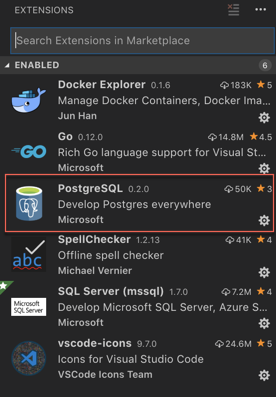
Install Link – PostgreSQL extension
Connecting to PostgreSQL from VS Code provides several benefits, including:
-
- Connect to PostgreSQL instances
- Manage connection profiles
- Connect to a different Postgres instance or database in each tab
- View object DDL with ‘Go to Definition’ and ‘Peek Definition’
- Write queries with IntelliSense
- Run queries and save results as JSON, csv, or Excel
Install VS Code PostgreSQL extension
-
Install the “PostgreSQL” extension in VS Code. You can do this by opening the Extensions view (Ctrl + Shift + X), searching for “PostgreSQL” in the search bar, and clicking on “Install” next to the “PostgreSQL” extension by Microsoft.
-
Open the “PostgreSQL” extension by clicking on its icon in the Activity Bar (left sidebar).
QuickStart
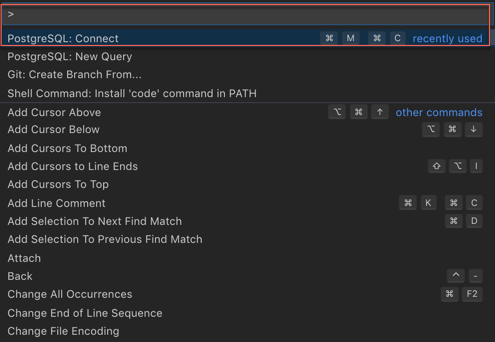
- Open the Command Palette
Ctrl + Shift + P (On mac use ⌘ + Shift + P)
PostgreSQL: New Query- In the command palette, select
Create Connection Profile. Follow the prompts to enter your Postgres instance hostname, database, username, and password.

You are now connected to your Postgres database. You can confirm this via the Status Bar (the ribbon at the bottom of the VS Code window). It will show your connected hostname, database, and user.
Query the database
- Type a query ex.
SELECT * FROM pg_stat_activity;
- Right-click, select
Execute Query / keyboard shortcut [⌘M ⌘R] and the results will show in a new window.
-
You can also save the query results as JSON, CSV or Excel.
So now, you can seamlessly code for PostgreSQL from Microsoft VS Code without switching screens, leverage powerful intellisense and execute queries.
Enjoy Coding!
IMP NOTE: Result windows from queries won´t show up again after being closed. This is bug with current version and is being worked by dev team. Workaround is either to keep the result window Open Or close / re-open the VS code window.



 data-nerd.blog