Recursive SQL for querying hierarchical data: Part 1

Recently, I was working on an application that required reading hierarchically structured data. And I thought it might be useful to document multiple ways to store and query such hierarchical data (ex. Org. chart, File-system layout, or Set of tasks in a project) in a database. So, let’s jump right in.

Definitions first – what is hierarchical data?

Hierarchical data is a specific kind of data, characterized by a hierarchical relationship between the data sets.

Think about data sets having multiple levels: something above, something below, and a few at the same level. A typical example of such hierarchical model is an organizational chart like the one below.

Continue reading “Recursive SQL for querying hierarchical data: Part 1”

PostgreSQL – how to UPSERT (Update or Insert into a table)

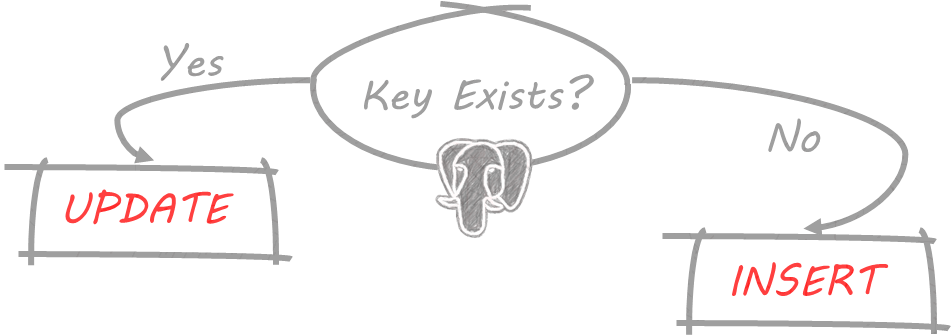
Most modern-day relational database systems use SQL MERGE (also called UPSERT) statements to INSERT new records or UPDATE existing records if a matching row already exists. UPSERT is a combination of Insert and Update, driven by a “PRIMARY KEY” on the table.

Continue reading “PostgreSQL – how to UPSERT (Update or Insert into a table)”

SQL Injection and Preventing them in your Golang app

SQL injection!… Is it really a thing?

SQL injection is a code injection technique that is capable of destroying your database. It is a code injection technique, used to attack data-driven applications, in which malicious SQL statements are inserted into an entry field for execution. (e.g. to dump the database contents to the attacker)

Continue reading “SQL Injection and Preventing them in your Golang app”

Implementing transactions in PostgreSQL using Go lang database/sql package

Introduction

A transaction is a unit of work that you want to treat as “a whole.” It has to either happen in full or not at all. In Go lang, a transaction is essentially an object that reserves a connection to the database. You begin a transaction with a call to db.Begin() and close it with a commit() or rollback() method on the resulting Tx variable.

Continue reading “Implementing transactions in PostgreSQL using Go lang database/sql package”

Querying rows from PostgreSQL from Go lang project

Introduction

In the last post Updating/Deleting rows with Go, we learned to manipulate rows in PostgreSQL database in Go project using database/sql package that ships with Go, along with github.com/lib/pq Postgres driver. In this post, we’ll learn how to query rows i.e. SELECT

Continue reading “Querying rows from PostgreSQL from Go lang project”

Updating and Deleting rows in PostgreSQL from Go lang project

Introduction

In the previous post Inserting records into a database with Go, we learned how to insert rows to PostgreSQL database from Go project using database/sql package that ships with Go, along with github.com/lib/pq Postgres driver. In this post, we’ll learn the remaining two DML (data manipulation language) operations i.e. UPDATE and DELETE.

Continue reading “Updating and Deleting rows in PostgreSQL from Go lang project”

Inserting rows in PostgreSQL db from Go lang project

Introduction

In the previous post Connecting to PostgreSQL from Go lang project, we learned how to connect to the PostgreSQL database from Go lang project using database/sql package that ships with Go, along with github.com/lib/pq Postgres driver. In this post, we’ll learn how to insert data (rows) in a PostgreSQL table.

Continue reading “Inserting rows in PostgreSQL db from Go lang project”

Connecting to PostgreSQL from Go lang project

Introduction

The Go programming language, sometimes referred to as Go lang, is making strong gains in popularity. Chances are if you are a Go developer, you will have to interact with SQL at some point in your project. This blog post will show how to connect to a PostgreSQL database from Go using database/sql package.

Continue reading “Connecting to PostgreSQL from Go lang project”

My journey from DBA to DevOps

I’ve been working as a database engineer for over a decade, engineering enterprise data platforms. During the beginning of my career in early 2000, I chose the ‘safe’ path of being a DBA believing that relational systems being universal containers for storing critical data will never change. I started learning relational technologies like Oracle, MS-SQL, and eventually also learned Open Source systems including PostgreSQL & MySQL.

Continue reading “My journey from DBA to DevOps”

Connect to PostgreSQL in VS Code

To connect to PostgreSQL from Visual Studio Code (VS Code), you can use an extension called “PostgreSQL” which provides a graphical interface to interact with your PostgreSQL database.

Install Link – PostgreSQL extension

Connecting to PostgreSQL from VS Code provides several benefits, including:

    • Connect to PostgreSQL instances
    • Manage connection profiles
    • Connect to a different Postgres instance or database in each tab
    • View object DDL with ‘Go to Definition’ and ‘Peek Definition’
    • Write queries with IntelliSense
    • Run queries and save results as JSON, csv, or Excel

Install VS Code PostgreSQL extension

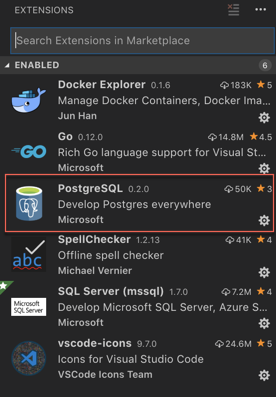
  1. Install the “PostgreSQL” extension in VS Code. You can do this by opening the Extensions view (Ctrl + Shift + X), searching for “PostgreSQL” in the search bar, and clicking on “Install” next to the “PostgreSQL” extension by Microsoft.

  2. Open the “PostgreSQL” extension by clicking on its icon in the Activity Bar (left sidebar).
    a

QuickStart

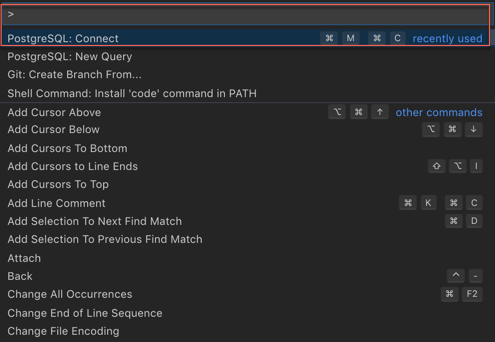
  1. Open the Command Palette Ctrl + Shift + P  (On mac use  ⌘ + Shift + P)
  2. Search and select PostgreSQL: New Query
  3. In the command palette, select Create Connection Profile. Follow the prompts to enter your Postgres instance hostname, database, username, and password.

a

You are now connected to your Postgres database. You can confirm this via the Status Bar (the ribbon at the bottom of the VS Code window). It will show your connected hostname, database, and user.

Query the database

  1. Type a query ex. SELECT * FROM pg_stat_activity;
  2. Right-click, select Execute Query / keyboard shortcut [⌘M ⌘R] and the results will show in a new window.
  3. You can also save the query results as JSONCSV or Excel.

So now, you can seamlessly code for PostgreSQL from Microsoft VS Code without switching screens, leverage powerful intellisense and execute queries.

Enjoy Coding!

IMP NOTE: Result windows from queries won´t show up again after being closed. This is bug with current version and is being worked by dev team. Workaround is either to keep the result window Open Or close / re-open the VS code window.